Variations
Chapter 3 — Variation Editing. Command every variation from inside its parent product row.
Plugin version: v2.1.4
Sell one product in five sizes and three colors and you have a variable product. WooCommerce treats each combination — Small Red, Small Blue, Medium Red, and so on — as its own variation under the parent. That is fifteen variations for one listing, and fifteen is a small example. Plenty of shops run fifty or a hundred.
Native WooCommerce wants you to click into each variation, edit it, scroll, click into the next, repeat. For five that is fine. For fifty it is a sin against your wrist. Bossy expands variations inline beneath the parent row so you see them all at once, edit them in place, and assign images without ever leaving the grid.
This chapter covers the whole variation workflow: spotting variable products, expanding one, the layout of variation cards, the sticky header, image assignment, adding and removing variations, and a few workflows that show how it fits together. The drag-and-drop image pool is Pro; on Free you assign images by clicking.
3.1 Spotting variable products in the grid
A variable product looks like any other row except for its Type badge, which reads "Variable" instead of "Simple." Turn on the Type column if it is hidden (Chapter 2.4 covers the column picker).
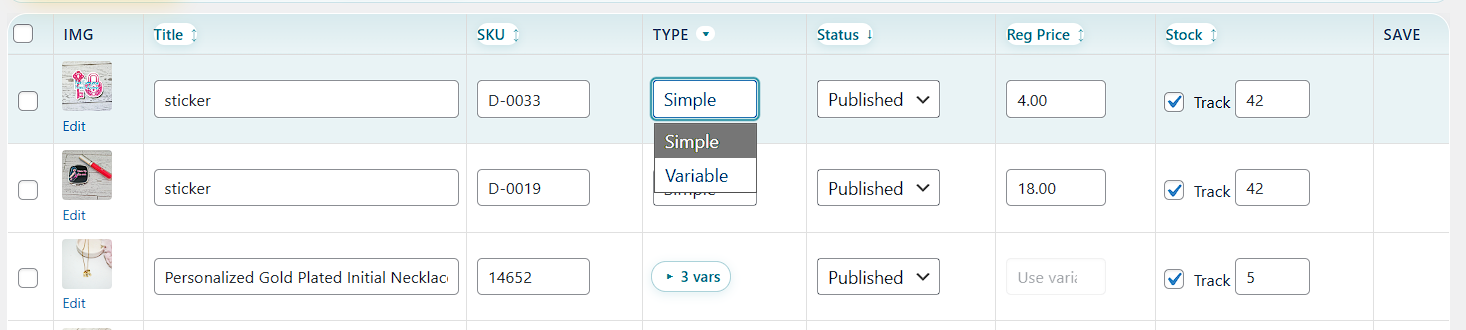
You can also set the Type filter in the sheet toolbar to Variable to load only variable products — handy when you want to work across just your variable inventory.
3.2 Expanding a variable product
Click the row's vars expand control to open the variation panel. It expands inline beneath the row at the full width of the grid. The simple rows above and below stay put — visible and editable. You can keep several variable products expanded at once.
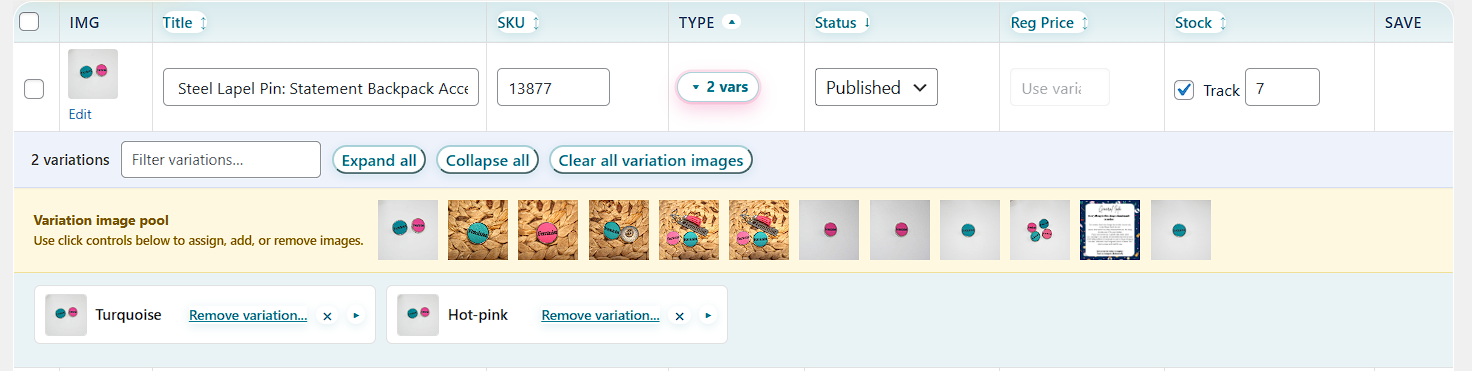
The variation panel has three parts, top to bottom:
- The sticky variation header — count, search, Add Variation, Expand all, Collapse all
- The image pool strip — the drag-and-drop source for variation images (Pro only; see 3.5)
- The variation cards — one card per variation, laid out in a grid
Click the same control again to collapse the panel. Pending edits are not lost when you collapse — they stay dirty and commit with Save All Changes or the parent row's save.
3.3 Anatomy of a variation card
Each variation gets its own card. Cards start collapsed, showing only the essentials. Click a card to expand it and reveal the editable fields.
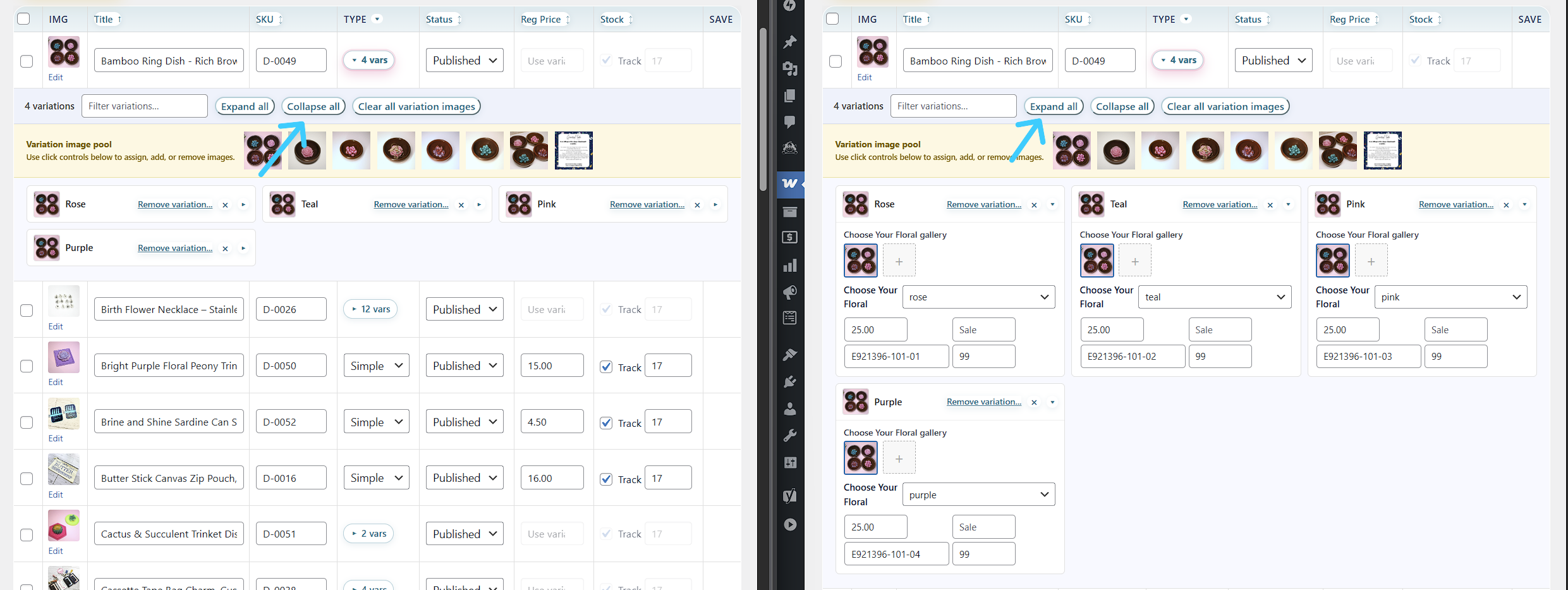
Collapsed card
The collapsed view shows:
- Main image thumbnail — the variation's featured image
- Up to 3 gallery preview thumbnails, with a "+N" badge when there are more (Pro)
- Variation label — the attribute combination, like "Small / Red" or "13 inch / Aged Brass"
- Remove variation button — trashes the variation (disabled when it is the product's only variation)
- Expand chevron
Expanded card
Click into the card for the full editor.
Images section (left side of card)
- Main image drop zone — the big thumbnail. Already-assigned variation images show the moment you expand the product — no click required to wake them up. An empty slot shows a clear + cue so you know it is a drop/click target. Click it to open the variation image picker — a product-first modal where you choose from this product's image pool, upload a new image, or browse the full Media Library. Drop an image here to set the variation's featured image. Click the X to remove the current main.
- Variation gallery drop zone — a row of smaller thumbnails. Drop images here to build the variation's gallery; click the X on any thumbnail to remove it; click the + tile to open the same picker. An empty gallery opens the picker automatically when you expand or click it, so you are never staring at a blank slot wondering what to do.
Fields section (right side of card)
- Variation title — usually optional (the attribute label already identifies the variation), but the field is there if you want a custom title
- Price — regular price for this variation
- Sale price — sale price for this variation, if any
- SKU — this variation's own SKU, unique across your entire store
- Stock — quantity in stock for this variation specifically
- Custom input padding — when a personalization input is attached to a variation (engraving, custom text, etc.), padding controls set top/right/bottom/left spacing around the input on the storefront, so you can match your theme without touching CSS
Editing any field marks the card dirty. Save with Save All Changes at the top of the screen, or the parent row's per-row save. Variation edits are batched into the parent product's save — you do not save each card on its own.
3.4 The sticky variation header
Across the top of every variation panel is a header that stays pinned as you scroll inside the panel. It carries everything you need to work a long variation list without losing your place. Four controls:
- Variation count — reads "12 variations" (or however many) and updates live as you add or trash.
- Filter variations search box — type any text and cards hide in real time to match against the variation label. Type "red" and only Red variations remain; type "small" and only Small. Clear the box to show everything again.
- Add Variation button — see 3.6 (Pro).
- Expand all / Collapse all — open or close every card at once. Perfect for scanning stock numbers across all variations without clicking each one.
The sticky behavior is the unsung hero. For 5 variations it barely matters. For 80 it is the difference between "this is usable" and "I'm crawling back to native WooCommerce."
3.5 The drag-and-drop image pool (Pro)
With Pro active, the sticky image pool is the fastest part of the variation workflow for anything past a handful of variations. Directly below the sticky header sits a yellow-tinted strip labeled Variation image pool. It is sticky too — which is the entire point.
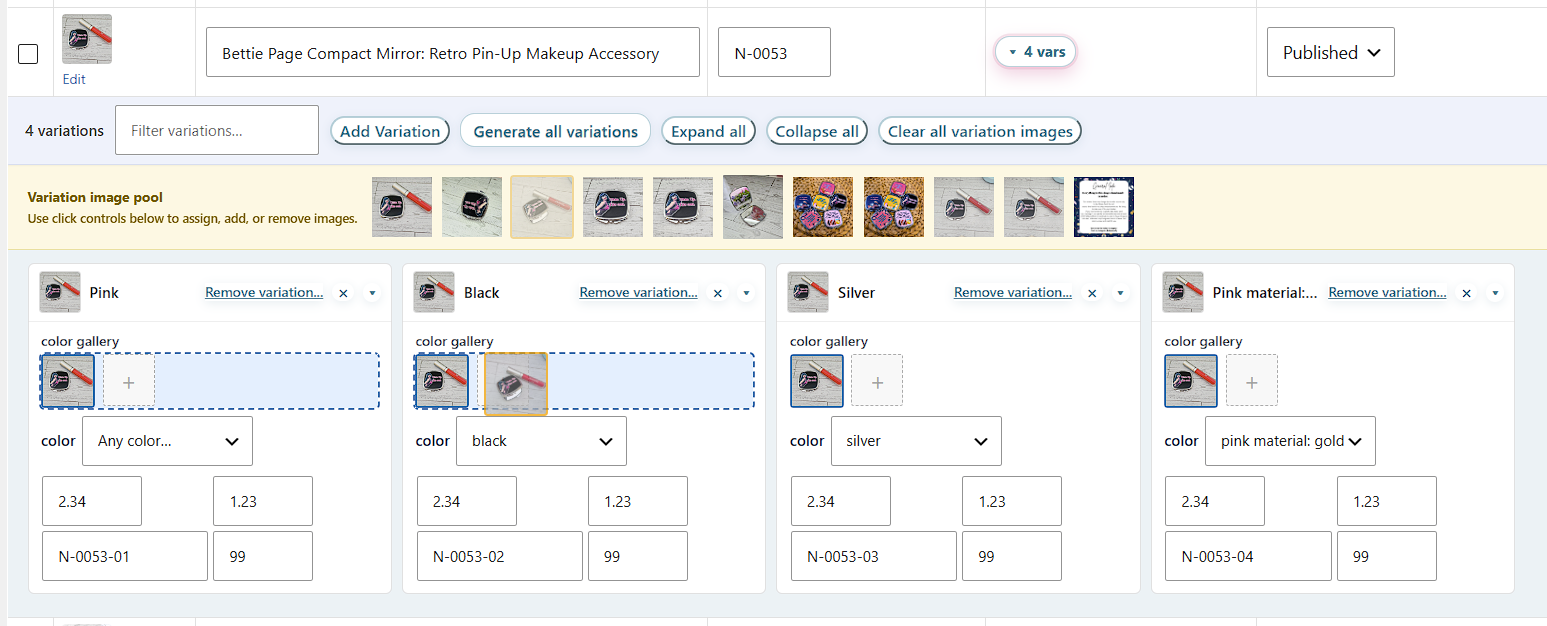
What's in the pool
The pool gathers every image already attached to this product, deduplicated:
- The parent product's gallery images (set on the parent, applies to the whole listing)
- Each variation's current main image
- Each variation's gallery images (Pro)
It does not pull from your entire WordPress media library, and that is on purpose. A focused pool of "the images that belong to this product" is what you actually need 90 percent of the time. You are not hunting through 4,000 random uploads — you are picking from the 20 photos you shot for this listing.
How drag-and-drop works
- Expand a variable product to show the variation panel.
- Click and hold any thumbnail in the image pool strip.
- Drag down to the variation card you want to update.
- Drop on the main image area to set the featured image, or on the gallery area to add it to that variation's gallery (Pro).
- The assignment saves automatically — no separate save click.
Drop targets highlight as you drag over a valid zone. Drop in a wrong spot and nothing breaks — the drag just cancels.
Why the sticky strip matters
A product with 30 variations stacks tall. By the time you scroll to variation #20, the top of the panel is way off-screen. Without a sticky pool you would scroll up, grab an image, scroll back down, drop — for. every. image.
With the sticky pool, the strip rides down the page with you. Sit at the 27th variation, grab an image, drop it — no scrolling up, ever. That is the real reason both the header and the pool strip are sticky: it is what turns a paper feature into a practical one.
Click-to-assign (the alternate path)
Drag-and-drop is not the only way. Every card has click controls too — clicking the main image zone or the + gallery tile opens the product-first picker modal. It leads with the images already attached to this product and gives you Upload and Browse Media Library right there in the modal. Both paths save the same way.
When to use which:
- Drag-and-drop — when the images you want are already on the product and you are assigning many at once. Fast.
- Click-to-pick — for everyday assignment from the product's own photos, or when you only have a variation or two to touch. Need an image the pool doesn't have yet? Upload or Browse Media Library live inside the same modal — no separate trip.
Distribute the pool across variation mains
Assigning images one drop at a time is fine for a few variations. When you want to spread the product's images across every variation main in one move, Pro gives you two bulk distribute actions that run off the image pool — both chunked for large variation sets and both snapshot-backed:
- Fill empty mains — walks the variations that have no main image yet and fills each one from the pool, in order. Variations that already have a main are skipped, so this never overwrites imagery you've already set. The safe "finish what's blank" pass.
- Assign in order — maps the pool to the variations positionally: the first variation gets the first pool image, the second gets the second, and so on. This does overwrite existing mains (a variation already holding the image it would receive is left alone). Use it when the pool order and the variation order already line up and you want them matched straight down.
Clearing variation images (Free + Pro)
The variation panel includes a Clear all variation images action that resets every variation's imagery for the product in one move. It is available in both Free and Pro.
Clicking it asks you to confirm — "Clear all variation images and variation galleries for this product? This does not change parent product gallery images." — then wipes each variation's main image plus its gallery assignments (including attribute gallery slots). It deliberately leaves your parent product gallery untouched, so the pool you assign from stays intact. When it finishes, Bossy reports how many variations were cleared.
3.6 Adding variations
With Pro active, the Add Variation button lives in the sticky header. Bossy has two ways to build variations: the inline Add Variation form (add one value, get its combinations) and Generate All Variations (build the whole matrix). Both are covered below.
Add Variation — the inline form
Clicking Add Variation does not drop a blank card on you. It reveals a small inline form right in the header — no popup, no page navigation.
The form has two fields. Attribute: a text input with datalist autocomplete populated from the product's variation-enabled attributes (e.g. pa_color, pa_size), pre-filled with the first one. If the product has only one variation attribute, this resolves automatically and only the value field shows. New value: the value to add (e.g. "Pink"), with a datalist of the attribute's existing values so you can see what already exists before typing. Press Enter or click Add to submit; Escape or Cancel to dismiss.
On submit, Bossy does three things in order:
- Appends the new value to the attribute's option list. For taxonomy attributes, it creates the WooCommerce term if it does not already exist.
- Generates one new variation per combination of the new value × all existing values of the product's other variation attributes. Add Color "Pink" to a product with Size [S, M, L] and you get three new variations: Pink/S, Pink/M, Pink/L. Same
wc_array_cartesian()logic and the same idempotency check as Generate All Variations — duplicates are skipped. - Shows a success message ("N variations added"), captures an undo snapshot, and refreshes the panel. No separate save click.
Generate All Variations
Generate All Variations (Pro) applies the Cartesian product of every defined attribute value to build every possible combination under the parent. Color [Red, Blue] × Size [S, M, L] produces six: Red/S, Red/M, Red/L, Blue/S, Blue/M, Blue/L. It is built for real catalogs — here is how it handles scale and data safety.
No cap — it chunks automatically. There is no combination limit and no "too many combinations" wall. Generate All Variations creates variations in chunks — 50 per request by default — looping on its own with a "Creating variations… X / Y" progress readout until every combination is built. A 10 × 10 × 5 matrix (500 variations) generates in roughly nine passes without a hitch. Developers can tune the per-request chunk size via the bossy_pro_variation_create_chunk_size filter (default 50); the older bossy_pro_generate_all_variations_cap filter (default 200) now sets the ceiling on how large a single chunk may go, rather than blocking the run.
Idempotent — existing combinations are skipped, not duplicated. The generator computes a deterministic signature per combination (attribute slug=value pairs, sorted and joined), then checks which signatures already exist. Existing variations are skipped; only genuinely new combinations are created. Run it twice on the same product and the second run makes nothing new.
State preservation — prices, SKU, stock, and images carry forward. When a restructure would orphan an old variation, the generator uses a weighted score to find the closest existing match and copies its data forward instead of leaving the new variation blank. Weights: regular price (10 points), SKU (8), sale price (5), stock quantity (3), featured image (2), and each dimension (1). Your pricing structure survives attribute restructures.
Stale variation cleanup (on by default). Obsolete or duplicate variations — ones that no longer match any valid attribute combination — are trashed before new ones are created, so the list stays clean without a manual pass. Filterable for developers.
SKU deduplication. During batch generation, each SKU template is claimed by only one new variation, preventing the duplicate-SKU error that would otherwise fire when several new variations try to inherit the same SKU from one existing variation.
Auto-promote attributes. If an attribute has values but its "Used for variations" flag was never checked (common on Simple→Variable conversions), the generator sets the flag for you — no leaving the Bossy panel to make attributes variation-eligible.
Single undo batch. Everything the generator does — new variations created, obsolete ones trashed, variation flags updated — is captured in one snapshot. A single undo from the Bossy undo bar reverses the whole generation.
3.7 Removing variations
Every variation card has a Remove variation... link in its header. Click it to trash the variation. It moves to WordPress trash (not permanently deleted yet), and Bossy captures a snapshot so you can undo through the system in Chapter 7. Removing variations works in both Free and Pro.
3.8 Common workflows
Workflow 1: Pricing 30 variations of a new product
- Find the parent product in the grid and click expand to open the variation panel.
- Click Expand all in the sticky header so every card opens at once.
- Scroll through and fill in prices. The sticky header keeps search and Expand/Collapse in reach the whole way down.
- Click Save All Changes in the toolbar. Every variation price saves in one go.
Workflow 2: Assigning the same hero image to all Red variations
- Expand the variation panel for the product.
- In the sticky search box, type
red. Only Red variations remain visible. - Find your hero image in the image pool at the top of the panel.
- Drag it onto the main image area of the first Red variation. Release.
- Drag the same image (still in the pool, still visible because the pool is sticky) onto the next Red variation. Repeat.
- Each drop saves automatically. Clear the search box to see all variations again.
Workflow 3: Finding and fixing one out-of-stock variation
- Expand the variation panel.
- In the search box, type part of the variation label (color, size, anything that identifies it).
- The list filters to a single match. Click to expand it.
- Update the Stock field and save.
Workflow 4: Replacing the main image across a product's variations
- Add the new image to the parent product's gallery first, so it lands in the pool.
- Expand the variation panel.
- Click Expand all.
- Drag the new image from the pool onto the main image area of each card. Each drop saves instantly.
- Done — every variation shares the new hero image, but each keeps its own gallery and field values.
3.9 Things that catch people off guard
A short list of things that occasionally trip people up:
The image pool can be empty. No images on the parent or any variation yet? The pool strip won't appear. Add at least one image to the product first.
Gallery thumbnails are tiny on collapsed cards. By design — the card stays compact. Expand the card to see the gallery at full size.
You can have multiple products expanded at once. Intentional. Start the Red product, get distracted, expand a Blue product — the Red panel stays open, both keep their dirty state, and Save All Changes commits everything.
Save All Changes saves variations too. No need to save cards one at a time. Per-variation edits roll up into the parent product save.
Native WooCommerce edits show after a refresh. Edit a variation in the standard WooCommerce admin while it is also open in Bossy and your Bossy view will not auto-refresh. Reload the page (or collapse and re-expand the panel) to pick up the change.
Chapter 3 recap
- Variable products expand inline. The variation panel sits under the parent row and you edit variations without leaving the grid.
- Every card has a main image, a gallery (Pro), and editable fields for title, price, sale price, SKU, and stock.
- The sticky header pins your count, search, and Expand/Collapse while you scroll.
- The sticky image pool is the engine behind drag-and-drop assignment at scale. It loads only images already attached to this product.
- Drag onto the main image area to set the featured image; onto the gallery area to add to the gallery (Pro). Saves are automatic on drop.
- Adding variations from the Bossy panel is Pro only. Removing variations works in Free and Pro and is recoverable through snapshot undo.
- Add Variation inline form (Pro) — a two-field form in the sticky header. Pick an attribute (auto-filled if only one exists) and type a new value; Bossy appends the value (creating a taxonomy term if needed) and generates cartesian variations for that value × the product's other attributes. No separate save; an undo snapshot is captured.
- Generate All Variations (Pro) builds every Cartesian combination — no cap, chunked automatically (50 per request by default, filterable via
bossy_pro_variation_create_chunk_size) with a live progress readout. Idempotent — existing combinations are skipped or updated in place, not duplicated. Stale variations auto-trashed. Price, SKU, stock, and images carry forward from the closest match via weighted scoring (reg 10, SKU 8, sale 5, stock 3, image 2, dims 1). SKU dedup prevents duplicate-SKU errors. Auto-promotes attributes to variation-eligible. The whole run — across every chunk — commits as a single undo batch, so one Restore reverses the entire generation. - Custom input padding controls set top/right/bottom/left spacing around a variation's personalization input without touching CSS.
- SKU uniqueness applies across variations too. Bossy refuses to save duplicate SKUs.