The Variations Tab
A flat-list view of every product variation in your catalog — not grouped by parent, not hidden inside expandable rows. Filter by attribute across your whole shop, then bulk-edit exactly the variations you want.
13.1 Variations tab vs Bulk Editor expansion — when to use which
Bossy gives you two ways to work with variations. They're complementary, not competing. Understanding the difference saves time.
You're working on a specific product. Expand it inline — its variations appear beneath the product row. Edit that product's variation prices, SKUs, stock, weight, dimensions, and images without leaving the grid.
Best for: "I need to update this one hoodie's variation prices" or "I want to assign images to this sticker's three color variations." (Variation gallery drag-and-drop is Pro-only; Free uses click-to-assign.) → Chapter 3
You're working on a variation-scoped task across your whole catalog. You don't care which parent product a variation belongs to — you care about the variation attribute, stock state, or sale status.
Best for: "I need to update the price of every Blue variation I sell" or "I want to set stock to 0 on every out-of-stock variation" or "I need to see every variation with a missing image."
13.2 Tour of the Variations tab
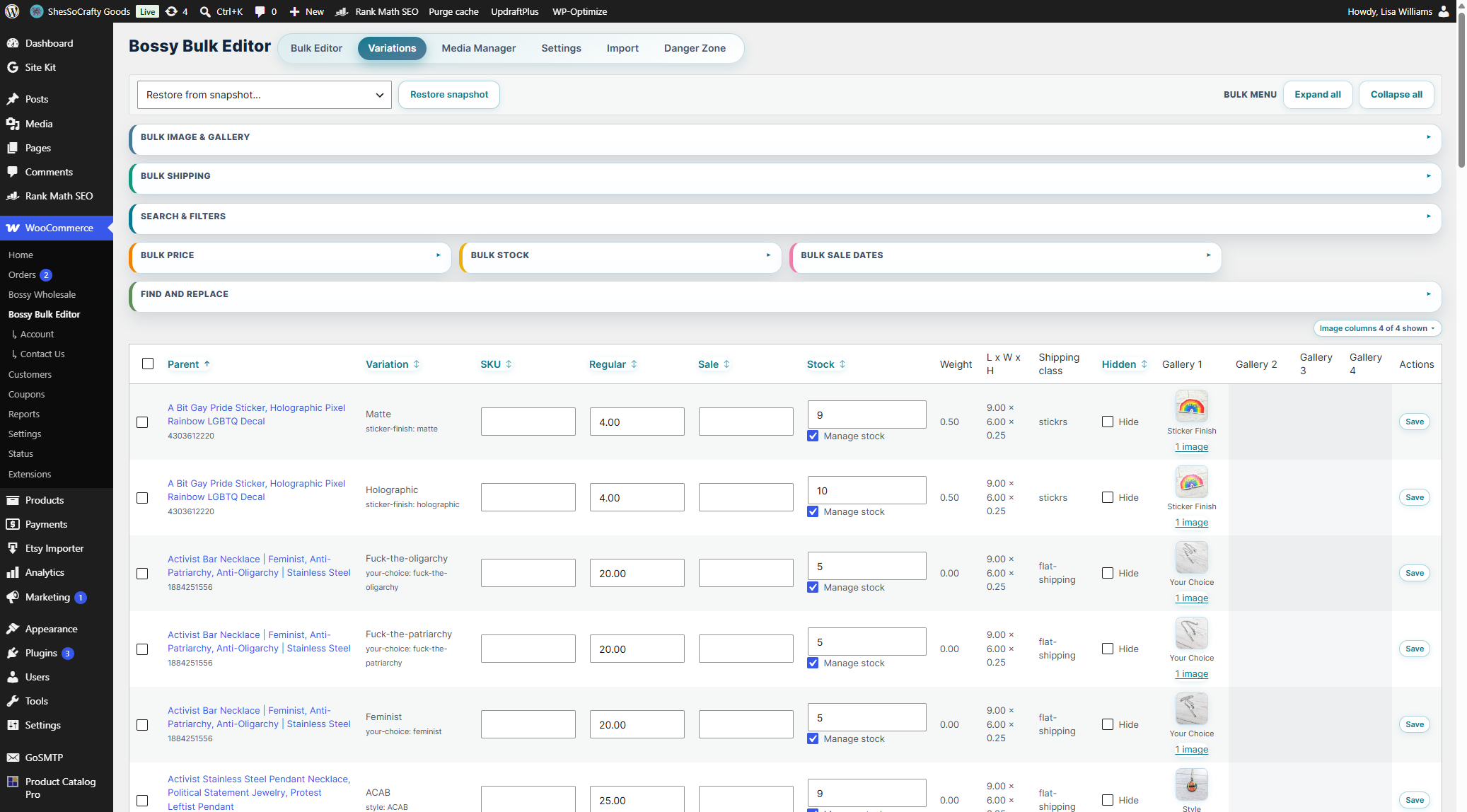
The Variations tab follows the same structure as the Bulk Editor — snapshot bar at top, action cards in the middle, flat grid below. A maker who knows the Bulk Editor already knows how to navigate this tab.
The snapshot bar at the very top is the same undo bar as everywhere else in Bossy. Every Variations tab bulk action is snapshotted before it runs — "Variation tab bulk price apply | May 25, 20…" tells you exactly what you can restore. See Chapter 7 for the full undo system. After you restore a snapshot, the Variations tab now clears your selection, reloads the rows, and re-fetches automatically — so restored values (stock, shipping, sale dates, and the rest) appear immediately instead of leaving stale data in the grid.
Seven color-coded action cards match the Bulk Editor's visual language exactly — so if you've been using the Bulk Editor, the color system is already familiar:
| Card | Color | What it controls |
|---|---|---|
| Search & Filters | Teal | Seven filter inputs for scoping the grid |
| Bulk Price | Orange | Regular or sale price — set, +/-, % |
| Bulk Stock | Yellow | Stock quantity and manage-stock state |
| Bulk Sale Dates | Pink | Schedule or remove sale dates |
| Bulk Image & Gallery | Teal | Featured image and gallery assignment |
| Bulk Shipping | Green | Shipping class, weight, and dimensions |
| Find and Replace | Teal | Text search/replace on SKU, Description, Title, Price, or All fields |
The variation grid below the cards is a flat list of product_variation rows with 14 columns: a select checkbox, Parent, Variation, SKU, Regular, Sale, Stock, Weight, Dimensions (L × W × H), Shipping class, Hidden, Image, Gallery, and Actions. Weight, Dimensions, and Shipping class now read out right in the grid, so you can confirm the values your Bulk Shipping card sets without opening a single product. One row per variation. Paginated server-side, 50 rows per page by default (max 100).
13.3 Reading a variation row
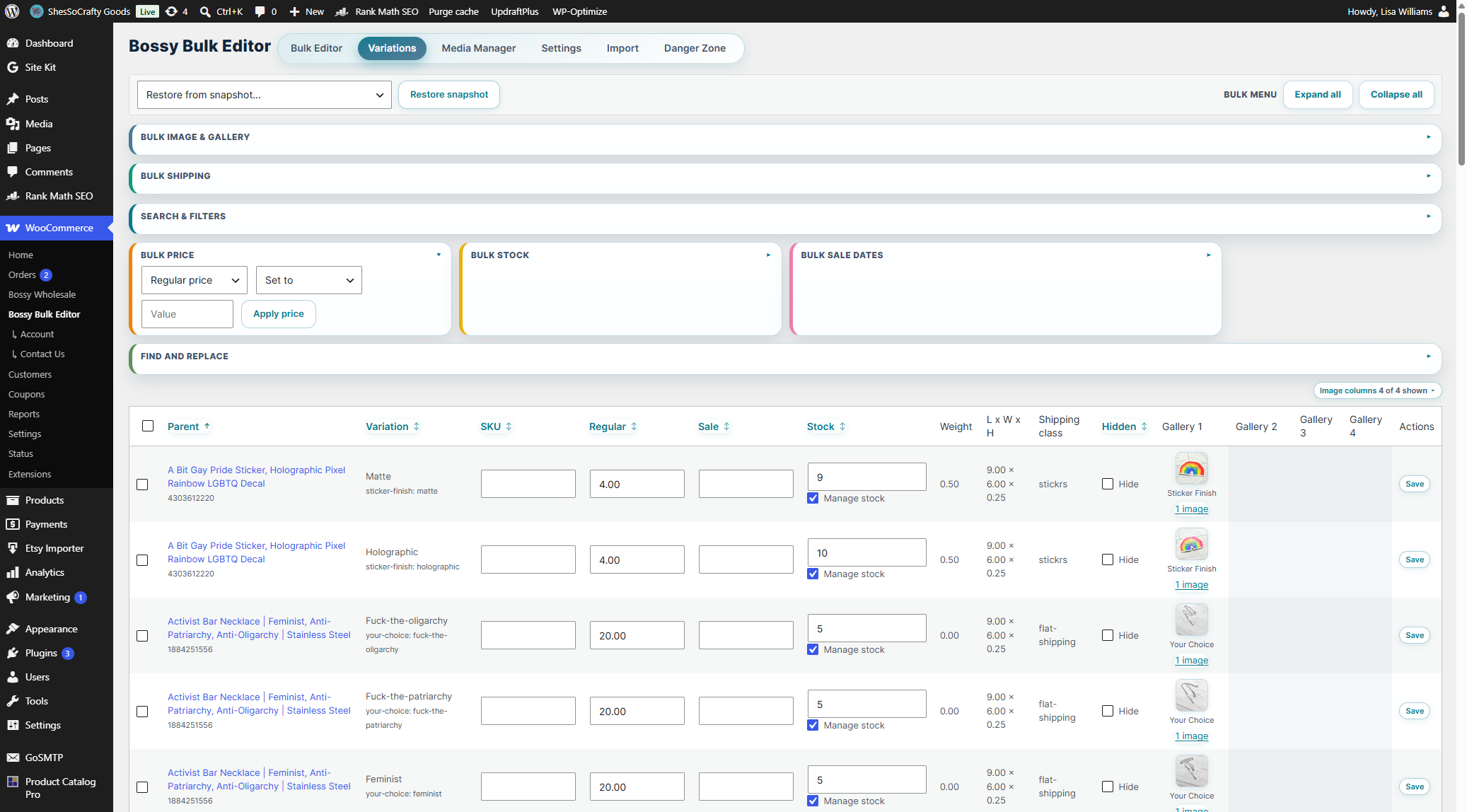
Each row shows more information than its column headers suggest. Here's what each cell actually contains:
13.4 Search & Filters

The Search & Filters card is the most powerful part of the Variations tab. Seven filter inputs, all server-side — Bossy only queries matching rows, it doesn't load everything and filter in the browser.
Search field
Free-text search across variation SKU, parent SKU, and parent product title. Type a partial SKU or product name fragment and hit Refresh.
Stock state
Filter by variation stock status: In stock, Out of stock, On backorder, Managed stock, Unmanaged stock, or All stock states (default — no filter).
Sale state
Filter by whether a variation is currently on sale: On sale, Not on sale, or All sale states (default).
Parent category
Filter by the parent product's WooCommerce category. Shows your full category list. Select a category to see only variations whose parent belongs to it.
Parent type
Filter by parent product type. Almost always "Variable" in practice, but available for edge cases.
Attribute key + Attribute value — the killer feature
This is the filter that makes the Variations tab unique in the WooCommerce ecosystem. Filter your entire catalog by a specific attribute combination — Color=Blue, Size=Large, Material=Cotton, or any attribute you have registered.
The attribute key field has autocomplete — as you type, your registered WooCommerce attributes appear as inline suggestions. Start typing "color" and your Color attribute appears. Select it and the field fills in correctly. No need to know internal taxonomy slugs.
The attribute value field takes the term you want to filter on: blue, large, cotton. Case-insensitive.
The hero workflow — bulk edit by attribute
blue) in the value field. Click Refresh.Refresh button
Search and attribute fields apply when you click Refresh (or press Enter). Dropdown filters (stock state, sale state, parent category, parent type) auto-refresh on change. Use Clear to reset every filter field back to defaults and reload the full list from page 1. If any rows are currently selected, Clear asks for confirmation before removing that selection.
13.5 Bulk Price
Works identically to the Bulk Price panel in the main Bulk Editor, scoped to variation-level prices.
Price type: Regular price or Sale price.
Operation: Set to / Increase by % / Decrease by % / Increase by amount / Decrease by amount.
Value: The number to apply.
Select rows → Open Bulk Price → Pick type and operation → Enter value → Apply price. Snapshot captured automatically.
13.6 Bulk Stock
Set stock quantity across selected variations. Has one additional control compared to the main Bulk Editor version: the Manage stock checkbox (pre-checked by default).
When checked, the operation sets the variation to managed stock mode and applies the quantity you enter. When unchecked, the stock status is set without enabling management — useful for variations tracked at the parent level.
Select rows → Open Bulk Stock → Confirm Manage stock state → Enter quantity → Apply stock.
13.7 Bulk Sale Dates
Schedule or remove sale dates across selected variations.
Start / End date pickers: Set the sale period. Leave End blank for an open-ended sale.
Force sale OFF checkbox: When checked, clicking Apply removes any existing sale dates from all selected variations, regardless of what Start/End shows. The date pickers are ignored. Use this to end a sale on a variation-attribute slice of your catalog without touching parent products.
If you click Apply with no Start or End date set and Force sale OFF unchecked, Bossy stops you — the server returns "Choose a sale start and/or end date first," the same guard the Bulk Editor uses. So either pick a date or check Force sale OFF before applying.
pa_color=holiday-red, select all, check Force sale OFF, apply. Every holiday-red variation comes off sale instantly.13.8 Bulk Image & Gallery
Two workflows — single image assignment, and chunked gallery replace.
Single image assignment
Gallery replace (chunked)
Assigning a full gallery to many variations at once is a heavier operation. Bossy processes it in chunks — batches of variations processed sequentially — to avoid server timeouts on shared hosting.
Gallery columns
Variations with multi-image galleries now spread across numbered gallery columns — Gallery 1, Gallery 2, and so on — instead of cramming every image into one cell. Three controls keep wide galleries manageable:
- Gallery column selector — a picker to show or hide individual gallery columns (Gallery 1, Gallery 2, …), so you can focus on just the slots you're editing.
- Pop-out gallery reorder — open a variation's gallery in a pop-out to drag images into the order you want, without wrestling with a cramped inline cell.
- Max columns on load — the tab reads how many gallery images your widest variation has and caps the number of gallery columns shown on load, so a single 20-image variation doesn't blow out the grid. A sensible default set of gallery columns is visible up front; reveal the rest from the selector as needed.
13.9 Bulk Shipping
Set shipping class, weight, or dimensions across selected variations. Only filled fields are applied — leave a field blank and Bossy skips it for that dimension.
Shipping class dropdown: Assign a WooCommerce shipping class.
Weight / Length / Width / Height: Dimensional values. Fill only what you need to change.
Apply shipping: Commits all filled fields to selected variations.
13.10 Bulk Find & Replace
Text-search-and-replace across selected variations, scoped to one field at a time.
Field: SKU, Description, Title, Price, or All.
Find / Replace: the old value and the new value.
Case sensitive / Whole word / Regex: the same three match-mode checkboxes as the main Bulk Editor's Find & Replace (Chapter 2.7) — check Regex to treat Find as a regular expression pattern instead of plain text.
Select rows → Open Find and Replace → pick a Field → enter Find/Replace → set match options → Apply to selected.
13.11 The Hidden column
Every variation row has a Hide checkbox. Checking it hides that variation from the storefront without deleting it. Unchecking makes it visible again. Check or uncheck the box, then click Save on that row — the change commits immediately.
How it works technically: Bossy sets the variation's WordPress post_status away from publish. WooCommerce's standard mechanism for disabling a variation — no custom metadata involved.
Common uses:
- Seasonal variants not in season (hide "Candy Cane Red" in July)
- Temporarily out-of-stock variants you plan to restock
- Discontinued options you're keeping for order history reference
- Test or staging variations not ready for public view
13.12 Common workflows
Workflow 1: Update pricing across a color tier
You're raising prices on your "Premium Black" color across 40 products.
black in the value field. Click Refresh.Workflow 2: End a sale on specific variations
Your seasonal sale is over. End it on "Holiday" category products only.
Workflow 3: Restock a size tier
Your "Large" restock arrived. Update stock across all Large variations.
large. Click Refresh.Workflow 4: Assign a variation gallery across an attribute
New studio photos for every "Navy" variation — same 3-image set across all of them.
navy. Click Refresh. Select all Navy variations.13.13 Things that catch people off guard
Chapter 13 recap
- Pro-only. Flat-list view of every variation in your catalog — filterable by attribute, bulkable across your whole catalog.
- Use the Variations tab for attribute-scoped tasks. Use Bulk Editor expansion for product-scoped tasks.
- Seven filter inputs — all combinable, all server-side: search, stock state, sale state, parent category, parent type, attribute key, attribute value.
- Attribute filter uses autocomplete — type your attribute name, select from suggestions. No need to know internal taxonomy slugs.
- Seven bulk action types: price, stock, sale dates, image, gallery (chunked), shipping, and find & replace (SKU/Description/Title/Price/All, with case/whole-word/regex matching).
- All bulk actions are covered by Bossy's snapshot/undo system. Variation-tab-specific undo labels appear in the snapshot bar.
- Hidden column — per-row checkbox. Hides variation from the storefront by setting
post_statusaway frompublish. Save the row after checking. - Parent title link opens the parent product in a new tab. Your Variations tab filter state is preserved.
- Chunked gallery replace — max 500 variations, max 24 images, chunk size 25. Don't close the tab while it runs.