Undo & Snapshots
Bossy's undo system is one of the most important features in the plugin, and also one of the most misunderstood. This chapter is the source of truth on what it does, what it does not do, and the exact limits — so when you need it, you know what to expect.
Most importantly: the undo system is NOT a backup. Read that line again. The undo system is a safety net for Bossy-tracked operations. It is not a substitute for site backups. Keep your regular WordPress backup tool running — UpdraftPlus, Solid Backups, your host's automated backups, whatever. The undo system catches "oh god I just bulk-edited the wrong category." It does not catch "my server caught fire" or "I just clicked Delete All Products in the Danger Zone."
7.1 What Undo actually covers
Bossy captures a snapshot every time you complete a tracked write operation. Tracked operations include:
- Bulk Editor write operations: bulk price changes, sale dates, schedule publish, stock updates (which now also reach the variation cards under a parent), SKU scheme assignments, category/tag/shipping changes, featured, menu order, tax class, short-from-long, and find & replace
- Per-row saves in the Bulk Editor (when you click the per-row Save button)
- "Save all" — every dirty row, parent plus its variations, captured as one grouped undo entry
- Variation field saves (price, sale price, SKU, stock, dimensions)
- Variation image assignments (click-to-assign or drag-drop), variation gallery saves, and the row-level Clear all variation images action
- Variation deletions (trashing a variation)
- Inline product type changes (Simple ↔ Variable from the grid)
- Adding a variation, and Generate All Variations (Pro) — the variations the generator creates (and any stale ones it trashes) are captured so a single undo reverses the whole generation
- Variations Tab bulk operations (Pro): bulk price, stock, sale dates, image, gallery replace, and shipping
- Product trash actions from the grid (per-row Trash button and bulk Trash selected) — full snapshot captured, restorable from the undo bar OR from WordPress Trash
- Media Manager saves (per-card and Save All), plus Set titles, Set alt text, and image alt/caption edits
Large price applies and restores finish in batches. A bulk price change on a big selection is saved in slices, with one price snapshot for the whole run. Restoring that snapshot also runs in slices until the batch is done, instead of one request that times out halfway through.
What is NOT covered by Undo:
- Edits made through native WooCommerce (Products → All Products → Edit). Bossy cannot snapshot what it did not do.
- Edits made by other plugins (other bulk editors, SEO plugins, sync plugins)
- Theme customizations or theme-related changes
- Settings tab changes (the Pro settings are saved as WordPress options, not as snapshotted Bossy operations)
- CSV Import — imports are large enough that capturing snapshots for every row would crush performance. Use Resume image sync for partial recovery during an import; otherwise treat imports as one-way operations.
- Danger Zone actions. These are deliberately outside the undo system. See Chapter 8.
7.2 The 7 truths about Bossy Undo
Everything you need to know about the limits of the undo system, in seven points. Memorize these — they answer 90 percent of "why did/did not undo work for me" questions.
1. The history is 50 batches per user, per site.
The snapshot history holds 50 batches maximum, scoped to your user account on this specific WordPress site. The 51st operation pushes the oldest out of the history. On a busy day with many bulk operations, your morning snapshots can roll off by afternoon.
2. The UI shows up to 40 snapshots at a time.
The UI displays up to 40 snapshots at a time, filtered to ones you have not already restored. The total HISTORY is 50, but the visible list is capped at 40 to keep the UI manageable. If you have restored snapshots, they stop showing in the list (but still count toward the 50-batch total until they roll off).
3. Snapshots are per-user — you cannot undo someone else's work.
Snapshots are scoped per user. If your VA, partner, or staff member made the bulk edit, only that user can restore that snapshot. Even an Administrator account cannot restore another user's snapshot. This is a deliberate safety feature — it prevents accidental cross-user restores that could overwrite intentional work.
4. Undo only covers Bossy-tracked operations.
The undo system snapshots only what Bossy operations capture. Native WooCommerce edits, theme changes, and other plugin actions are invisible to the undo system. See section 7.1 for the full list.
5. Restore is best-effort and verified — and a partial restore stays in the list so you can retry.
When you click Restore, Bossy walks every item in the batch and writes its before-state back. The rebuilt engine then verifies each value actually took effect — so a write that silently fails surfaces as a skipped item instead of a false "success." Items can still skip (most often SKU collisions — see section 7.4). The important change: a batch is only marked restored and removed from the list when every item succeeds. If even one item is skipped, the batch stays in your undo list with a partial count, so you can clear the blocker and run it again.
6. A fully-completed restore is spent; a partial restore can be retried.
Once a batch restores with zero failures, it is marked restored=1 and leaves the active undo list — you cannot re-trigger that one from the UI. But a partial restore (one or more items skipped) is deliberately NOT marked spent: it remains available so you can free up a colliding SKU, restore a deleted parent, or fix whatever blocked the skipped items, then restore again to pick them up. (Either way the snapshot data persists in the database until it rolls off the 50-batch retention.)
7. Undo is a safety net, not a backup.
Said earlier, said again here because it is the most important truth: keep your real backups running. Undo is what you reach for when you bulk-edited the wrong selection 90 seconds ago. Backups are what you reach for when something genuinely catastrophic happens.
7.3 How to use the Undo bar
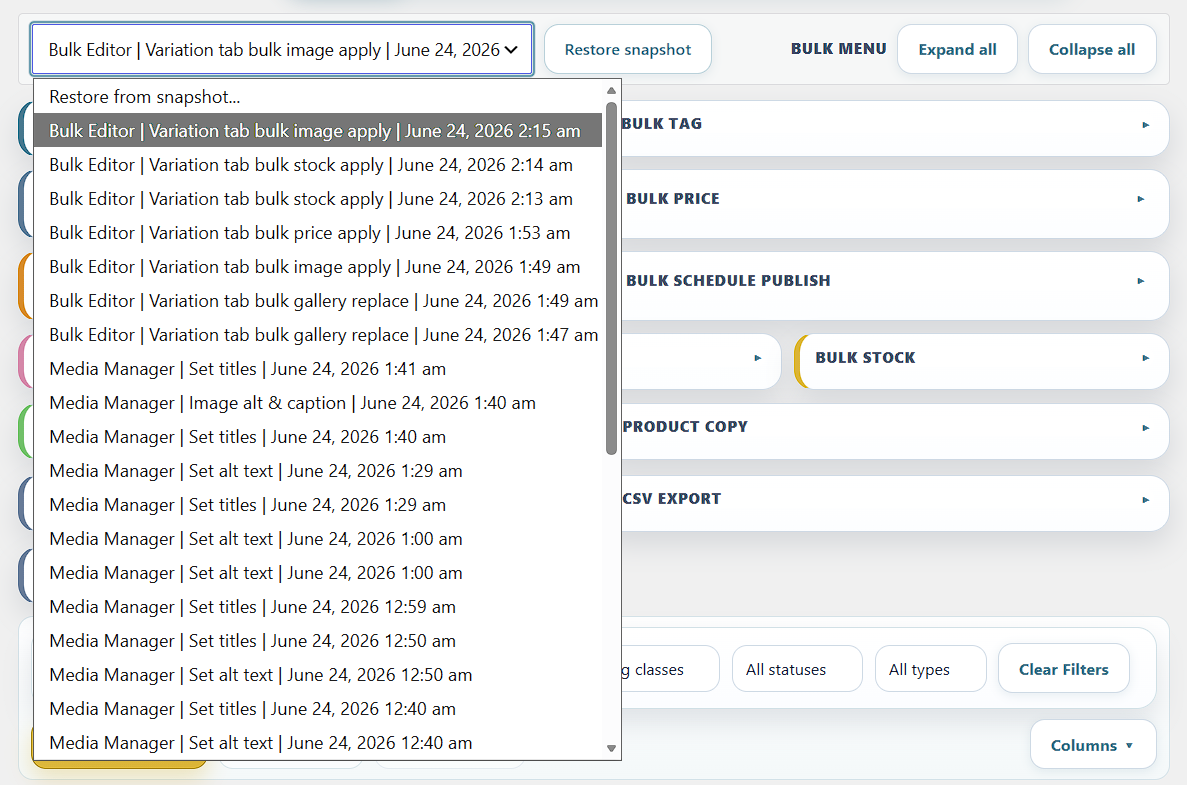
The undo bar sits at the top of the Bulk Editor tab and the Media Manager tab. Same bar, same data, accessible from both screens.
Reading a snapshot entry
Each snapshot in the list shows:
- Timestamp — when the operation happened (your site timezone)
- Source — which tab the operation came from (bulk editor, media manager, etc.)
- Action label — what kind of operation it was (Bulk price, Tags add, Variation save, Media titles, etc.)
- Item count — how many products or variations were affected
- Restore button — the action to roll it back
Restoring a snapshot
- Find the snapshot in the undo bar. If it has scrolled out of view, expand the list to see the full 40-item history.
- Click Restore on that snapshot.
- Bossy processes each item in the batch. The UI shows progress and a final result.
- On a fully-successful restore, the batch disappears from the undo list (marked
restored=1). If any item was skipped, the batch stays in the list so you can retry it after fixing the blocker. - The grid updates in place with the restored values — no manual refresh needed.
What restoration actually does
Each snapshot contains the BEFORE state of every item touched by that operation. Restoring writes those before-state values back to the database. For a bulk price change, "before" is the prices that existed before the change. Restore writes those prices back. For a variation deletion, "before" is the entire variation record. Restore re-creates the variation.
This is straightforward in most cases. It gets complicated when something has changed in the world between the snapshot and the restore — a category was deleted, an SKU was assigned to a different product, an image was removed from the media library. Bossy handles those gracefully by skipping the item it cannot restore and continuing with the rest.
7.4 When a restore item skips (and why)
Partial restores are normal. Bossy does not refuse to restore a batch just because one item has a problem — it restores what it can and tells you which items failed. And because the rebuilt engine verifies each write, an item that can't be written back (or whose write doesn't actually stick) is reported as skipped rather than silently passing — no more "it said it restored but nothing changed." Here are the most common reasons individual items skip during restore.
SKU collisions (the primary cause)
SKU collisions are far and away the most common reason a restore item fails. Here is the scenario:
You bulk-renamed SKUs across 30 products on Monday — say, the prefix changed from OLD-001 through OLD-030 to NEW-001 through NEW-030. On Tuesday you imported new products from a CSV, and those new products happened to grab some of the old SKUs (OLD-005, OLD-012, OLD-018). On Wednesday you decide Monday's rename was a mistake and try to restore the snapshot.
Bossy starts walking through the batch trying to restore the old SKUs. It hits OLD-005 first — but OLD-005 is now assigned to one of Tuesday's imported products. WooCommerce will not let two products share an SKU. Bossy skips that item, marks it as failed in the restore result, and moves on.
The restore completes. 27 of 30 items came back. Three were skipped because of SKU collisions. Bossy will tell you which three so you can manually fix them in the Bulk Editor.
Other reasons items can skip
Less common but worth knowing about:
- Referenced category deleted — if a snapshot references a category that has since been deleted, the category assignment in the restore is skipped (the rest of the product's fields restore normally).
- Referenced image deleted — if a snapshot references a media library image that has since been deleted, the image assignment is skipped.
- Variation parent deleted — if a snapshot tries to restore a variation whose parent product has been deleted, the variation restore fails because there is no parent to attach it to.
- Permissions changed — restore checks
edit_postcapability per item at restore-time. If your role has been downgraded since the snapshot was created, you may not be allowed to restore items you previously had permission to edit.
Reading the restore result
After every restore, Bossy shows a result message indicating how many items succeeded and how many were skipped. Pay attention to this. If it says "Restored 27 of 30 items, 3 skipped (SKU collision)," that is your cue to investigate the three failures and fix them by hand.
7.5 Snapshot retention details
For the technically curious or for support staff debugging an undo issue, here is how the snapshot system stores data behind the scenes:
Table: Bossy stores snapshots in a database table named bossy_snapshots (with your site's WordPress table prefix in front, like wp_bossy_snapshots).
Per-user, per-blog scoping. Each snapshot is tagged with the user ID and blog ID that created it. On multisite networks, snapshots are scoped to the specific site within the network.
Retention policy. Bossy keeps the latest 50 batches per user per site. When a 51st snapshot is created, the oldest existing snapshot is removed. The undo UI shows up to 40 not-yet-restored snapshots at a time.
Restored snapshots are kept in the table until they roll off naturally. Restoring a snapshot does not immediately delete it — it sets restored=1. The snapshot still counts toward your 50-batch quota until it ages out. This is intentional: keeping restored snapshots around briefly lets support diagnose "what was that batch I just restored?" questions.
Uninstall behavior. If you delete the Bossy plugin entirely (Plugins → Bossy Bulk Editor → Delete), the uninstall routine drops the bossy_snapshots table and removes Bossy's settings options from the database. Snapshots do not survive a plugin deletion. If you deactivate without deleting, snapshots persist.
7.6 Common scenarios
Scenario: "I just bulk-priced 200 products and the percentage was wrong"
- Stop. Do not click anything else.
- Look at the undo bar — the top entry should be your bad bulk price snapshot.
- Click Restore on that snapshot.
- Wait for the restore result. It should restore all 200 items unless something has changed since (unlikely, since this just happened).
- Verify a few products to confirm prices reverted.
- Try your bulk price operation again with the correct percentage.
Scenario: "I deleted a variation by mistake"
- Open the Bulk Editor (or Media Manager — both show the undo bar).
- Find the Variation delete snapshot in the undo list.
- Click Restore.
- The variation is recreated. Refresh the parent product's variation panel to see it.
Scenario: "I trashed a product (or a batch) by mistake"
You have two recovery paths, in this order of preference:
- First, try Bossy Undo. Open the undo bar at the top of the Bulk Editor. Find the trash snapshot (the action label will say "Trash" or similar). Click Restore. The product comes back exactly as it was, including all variations.
- If the snapshot has rolled off (more than 50 operations ago), use WordPress Trash. Go to Products → All Products → Trash tab. Find the trashed product. Click Restore. The product comes back, though attribute states or rare meta may differ slightly compared to a Bossy Undo restore.
Scenario: "I want to undo something from yesterday but the snapshot is not in the list"
Check whether you have made more than 50 bulk operations since yesterday. If so, the snapshot has rolled off and is no longer recoverable. Alternative recovery paths: restore from your site backup; manually edit the affected products to restore the values you remember.
Scenario: "I am sharing my Bossy with a VA — can they undo my changes?"
No. Snapshots are per-user. Your VA can only undo their own snapshots. You can only undo yours. If you need a teammate to be able to roll back your work, you need to either share the same WordPress user account (not recommended for security reasons), or do the work yourself when rollback might be needed.
7.7 Under the hood: the rebuilt snapshot engine
The undo engine was rebuilt for reliability. You do not have to think about any of this to use it, but if you support a store or want to know exactly what is happening, here is how it now works.
Capture-up-front. For a tracked action, Bossy captures the complete before-state of everything it is about to touch in one pass, before any write runs. The write handlers then run in "prebatched" mode so they do not snapshot again. The result: one clean snapshot that reflects exactly the state at the moment you hit the button — not a pile of half-records assembled mid-write.
One save = one undo entry (grouped batches). A "Save all" touches many rows, and a single variable product can fan out into a parent plus dozens of variation writes. The engine assembles all of those into one snapshot batch (across multiple requests if needed, with a short-lived assembly window) and commits it as a single entry. So undoing a Save All is one click — not one undo per field or per row.
Locked, race-safe restores. When you restore, Bossy takes a short lock on that specific batch. A double-click, a second browser tab, or an impatient retry can't run the same restore twice and tangle your data. A lock left behind by an interrupted request clears itself automatically after 120 seconds.
Verified, retryable restores. Each restored value is verified to have actually taken effect, and a batch is only marked spent when every item succeeds — otherwise it stays in your list to retry (sections 7.2 and 7.4). This closes the old "undo silently didn't stick" class of problem.
Storage is unchanged. Snapshots still live in the bossy_snapshots table, still scoped per user per site, still 50 kept / 40 shown. The rebuild hardened how snapshots are captured and restored, not where they are stored.
Chapter 7 recap
- Undo is a safety net for Bossy-tracked operations, NOT a backup system. Keep your real backups running.
- 50 snapshots per user per site, 40 visible at a time, scoped per user (you cannot undo someone else's work).
- Tracked: bulk editor, variation edits, media manager. Not tracked: native WooCommerce edits, CSV imports, settings changes, Danger Zone actions, third-party plugin changes.
- Restoring a batch tries every item individually and verifies each write actually landed. SKU collisions are the primary cause of partial-restore failures.
- A fully-successful restore is spent and leaves the list; a partial restore stays available so you can fix the blocker and retry.
- Rebuilt engine: snapshots are captured up-front before the write, a whole "Save all" is grouped into one undo entry, and restores are locked and verified.
- Snapshot data is stored in the
bossy_snapshotsdatabase table. Deleting the plugin drops the table. - For major catalog work, export a CSV via Bulk Editor → CSV Export (Columns: Marketplace) before starting. That is your offline-safe before-state snapshot, independent of the undo system.