Danger Zone
Danger Zone is the "oops I did not read anything and I need to start over" button. That is its honest job description. It exists because every shop owner eventually finds themselves in one of these situations:
- You imported a test CSV into your live store while learning the importer
- Your migration from Etsy/Shopify/elsewhere went sideways and you have 400 garbage products to clean up
- You built out a dev shop and now need to clear the test data before going live
- You inherited a WooCommerce site from a previous owner and want to start fresh with your own catalog
- You have been clicking around and want to reset everything to "fresh WooCommerce, no products" without uninstalling and reinstalling
Danger Zone gives you two big red buttons to handle these scenarios: Delete all product images and Delete all products. Both are destructive. Both cannot be undone through Bossy. Used in the right order with a current backup, they are the fastest path back to a clean slate.
8.1 Where Danger Zone lives
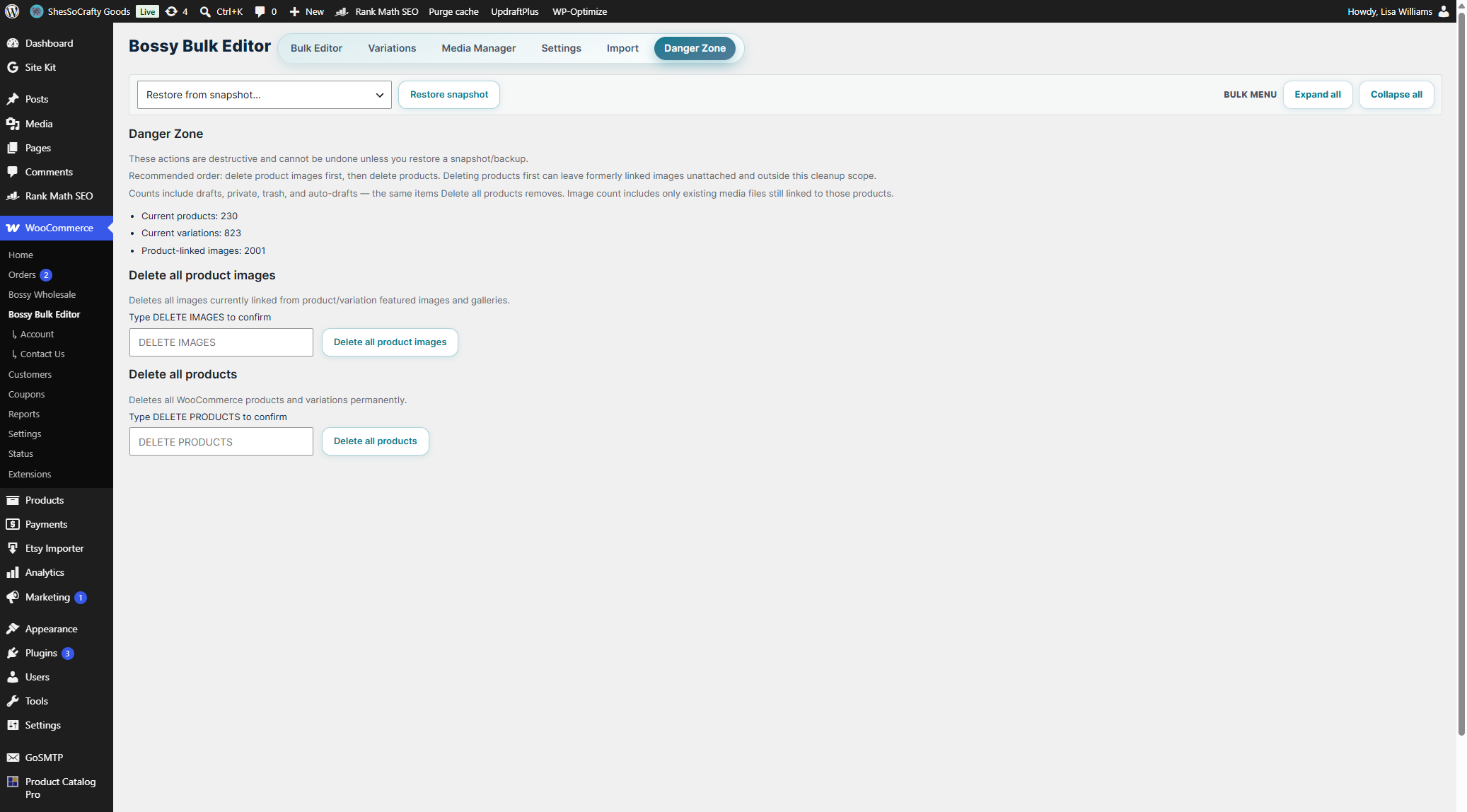
Open Bossy at WooCommerce → Bossy Bulk Editor, then click the Danger tab. The tab is the last one in the navigation, separated visually from the others to reduce accidental clicks.
8.2 The catalog snapshot card
At the top of the Danger tab is a small information card listing your current totals:
- Current products — total number of products in your WooCommerce store, all statuses (published, draft, scheduled, private)
- Current variations — total number of variations attached to variable products
- Product-linked images — total number of images currently attached to products or variations as featured images or gallery items
Look at these numbers BEFORE running any destructive action. If "Current products" says 847 and you only meant to delete the test products from a small migration mishap, stop and use the Bulk Editor to selectively delete instead.
8.3 Delete all product images
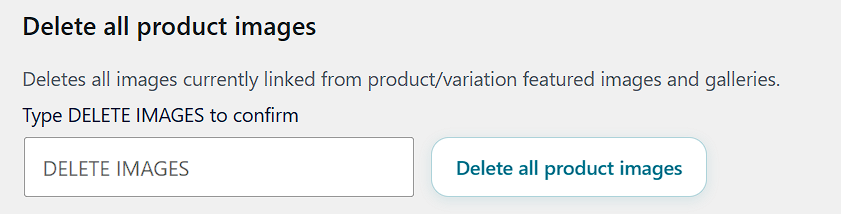
The first destructive button on the Danger tab. Removes every image in your media library that is currently linked to any WooCommerce product or variation — as featured images or gallery images.
What it deletes
- Every image currently set as a product's featured image
- Every image in any product's gallery
- Every image set as a variation's featured image
- Every image in any variation's gallery (Pro)
Images NOT used by products — your logo, post images, page backgrounds, etc. — are left alone. Danger Zone is scoped to product-linked images only.
What it does not delete
- The product records themselves (titles, descriptions, prices, SKUs all remain)
- Images that are no longer linked to any product (orphan attachments)
- Images used elsewhere on your site (theme assets, blog post images, page images)
How to run it
- Take a backup of your site. Bossy will not save you from this one.
- In the Delete all product images card, type
DELETE IMAGESinto the confirmation field. Bossy accepts any capitalization (it uppercases the input), but type it as shown. - Click the Delete all product images button.
- A browser confirmation popup appears asking "Delete ALL product-linked images from Media Library? This cannot be undone." Click OK to proceed, Cancel to back out.
- Bossy walks through every product-linked image and deletes it from the media library.
- You return to the Danger tab with a success message showing how many images were deleted.
8.4 Delete all products
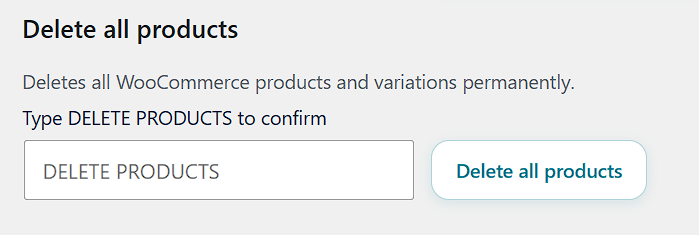
The second destructive button on the Danger tab. Permanently removes every WooCommerce product and variation from your store.
What it deletes
- Every product (all statuses — published, draft, scheduled, private)
- Every variation attached to every variable product
- The relationships linking products to categories, tags, and shipping classes
What it does not delete
- Product categories (the taxonomy still exists — they are just empty afterward)
- Product tags (same)
- Shipping classes (same)
- Images in the media library (use Delete all product images for that)
- Orders, customers, coupons, or any other WooCommerce data
How to run it
- Take a backup of your site. Last chance.
- In the Delete all products card, type
DELETE PRODUCTSinto the confirmation field. Bossy accepts any capitalization (it uppercases the input), but type it as shown. - Click the Delete all products button.
- A browser confirmation popup appears asking "Delete ALL WooCommerce products and variations? This cannot be undone." Click OK to proceed, Cancel to back out.
- Bossy walks through every product and variation and deletes them.
- You return to the Danger tab with a success message showing how many products and variations were deleted.
8.5 The recommended order: images FIRST, then products
The Danger tab itself recommends this order, and there is a real reason for it. If you delete products first and then run Delete all product images, the image deletion will find nothing — because the images are no longer "linked to products" once the products themselves are gone. They become orphaned attachments, technically still in your media library but no longer in the cleanup scope.
Correct order:
- Backup your site.
- Run Delete all product images first. While the product records still exist, Bossy can identify all product-linked images and remove them.
- Then run Delete all products to clear the product records.
- Result: clean WooCommerce, clean product images. Ready for your fresh import or manual rebuild.
8.6 The "start over" workflow
This is the cleanest path from "my store is a mess and I want to start fresh" to "ready to import or build new products."
- Take a full site backup with your usual backup plugin. Verify the backup file exists and is downloadable.
- If you want to keep ANY products, export them first. Bulk Editor → CSV Export → All products → Marketplace. Save the CSV somewhere safe.
- If you have specific categories, tags, or attributes you want to preserve, note them down or screenshot the WooCommerce → Products → Categories screen. These will survive the deletion but you should know your list.
- Open Danger Zone.
- Run Delete all product images. Confirm both gates (typed phrase + browser popup). Wait for success.
- Run Delete all products. Confirm both gates. Wait for success.
- Verify you are at zero products and zero product-linked images by checking the catalog snapshot card at the top of the Danger tab.
- Begin fresh — manually add products, run a CSV import, or do whatever the next phase of your store needs.
8.7 Recovery scenarios
If you ran a Danger Zone action and immediately regretted it, here are your options in order of preference:
Option 1: Restore from your site backup (best)
If you took a backup before running Danger Zone (which you did, because you read this chapter), restore it. UpdraftPlus, Solid Backups, your host's backup tool — whatever you use, this is exactly the scenario it exists for. Restoring a backup is the only way to recover products that Danger Zone deleted.
Option 2: Re-import from your last CSV export
If you exported a CSV before running Danger Zone (which the section 8.6 workflow recommends), you can re-import it via Bossy's CSV import. The Pro CSV Import handles this cleanly — see Chapter 5. You will lose any data that was not in the CSV (snapshots, custom meta from other plugins, etc.) but you get your products and core fields back.
Option 3: Re-import from your source platform
If you originally migrated from Etsy, Shopify, or another platform, re-export from the source and run the migration workflow again. This costs you any WooCommerce-specific edits you had made (categories, custom descriptions, theme-aware formatting), but it gets you back to your source-platform baseline.
Option 4: Manual rebuild
If none of the above options is available — no backup, no CSV export, no source platform — you are rebuilding from scratch. This is the worst-case scenario and the reason every other section of this chapter has hammered the "take a backup" point.
8.8 Things that catch people off guard
Categories, tags, and shipping classes survive Delete all products. The product records are gone but the taxonomy still exists. If you import again, your existing categories will pick up the new products without needing to be recreated.
Orders survive Delete all products. WooCommerce keeps order records independent of product records. Past orders for now-deleted products still exist in the order history, with the product names captured at order time. This is by design — you need order history for accounting and customer support.
Bossy snapshots survive Delete all products. Your undo bar still has whatever snapshots were there before. They are useless now because the products they reference are gone, but the snapshot records persist until they roll off naturally.
Image deletion can be slow. For shops with thousands of product-linked images, Delete all product images can take several minutes. Do not close the browser tab during the operation.
Product deletion is also slow on large catalogs. For shops with thousands of products and variations, expect minutes, not seconds. Plan to do this when you have time to watch it complete, not five minutes before a meeting.
Chapter 8 recap
- Danger Zone is Pro-only. The "start over" button when you need a fresh slate.
- Two destructive actions: Delete all product images, Delete all products.
- Both are protected by a typed confirmation phrase (
DELETE IMAGES/DELETE PRODUCTS— any capitalization works, Bossy uppercases what you type) AND a browser confirm popup. Two gates to clear. - Danger Zone actions are NOT covered by Bossy's undo system. Take a backup before running anything here.
- Recommended order: images first, then products. Deleting products first orphans the images and prevents Bossy from cleaning them up.
- Survives Danger Zone deletion: categories, tags, shipping classes, orders, customers, settings.
- Does NOT survive Danger Zone deletion: products, variations, images linked to products.
- Recovery options in order of preference: site backup, Bossy CSV re-import, source platform re-export, manual rebuild.